en-my


The GOD55 app is downloaded straight from GOD55 rather than from a store listing, so the route to it is a little different from the apps you are used to installing. Android takes three taps. iOS takes a few more, because the app arrives as an enterprise-signed profile and Apple asks you to approve the developer before the app will open.
Both downloads live in the same place: the download icon in the site header. Below are the exact steps for each platform, what the iOS trust prompt actually means, and the separate list of third-party slot and casino apps that sits alongside the GOD55 download.
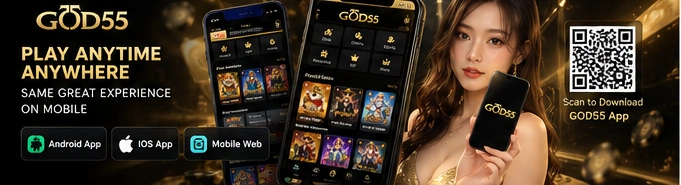
Tapping the download icon in the GOD55 header opens a download modal with three tabs: GOD55 APP, Android and iOS. The GOD55 APP tab is the one that carries the GOD55 app itself, with an Android QR code and Download button on one side and an Apple iOS QR code and Download button on the other.
The QR codes exist for a practical reason. If you are reading the site on a desktop or laptop, there is no useful way to send an installer to your handset, so you point your phone camera at the code on screen and the download opens on the phone instead. If you are already browsing GOD55 on the phone you intend to install on, ignore the code and use the Download button directly.
Worth knowing before you start: GOD55 distributes the app as a direct download rather than through Google Play or the Apple App Store. On Android that means an APK-style file you install yourself, and on iOS it means an enterprise profile install. There is no store page to search for, and no store listing to check, which is why both platforms ask you to approve something during setup that a store download would have handled quietly in the background.
The two platforms differ in more than step count, so it helps to see the shape of each process before working through it.
| Install detail | Android | iOS |
|---|---|---|
| Where the app comes from | Direct download from GOD55, with a QR code option | Direct download from GOD55, with a QR code option |
| Install method | Download the app file, then run the install | Download a profile, then install it in Settings |
| Approval step | Confirm the installation when prompted | Trust the developer under Enterprise App in Settings |
| Store listing | None | None |
That is the whole sequence for a first-time install. One thing the steps do not spell out is that Android generally asks for your confirmation before installing an app that did not come from the Play Store, and depending on your phone and Android version, that confirmation may appear as a permission prompt for the browser or file manager you downloaded through. It is normal behaviour for any direct download, not a warning that something has gone wrong. Read the prompt, approve the install, and step 2 continues as written.
Once the developer is trusted, the app icon behaves like any other on your home screen and you do not repeat step 3 on future launches.
Enterprise-signed distribution is the mechanism Apple provides for apps delivered outside the App Store. Instead of a store download that iOS already considers vetted, the app is signed by a developer certificate, and the device installs a small configuration profile that identifies who signed it. iOS deliberately refuses to launch that app until a human being has gone into Settings and said, in effect, that this developer is one they choose to trust.
So the extra taps are not an accident of the GOD55 download and not something you can skip. They are the approval iOS demands whenever an app has not passed through the App Store. Practically speaking, the thing to check is that you are approving the profile you just downloaded from the GOD55 download modal and nothing else, which is also the reason it is worth reading each prompt rather than tapping through them by reflex.
The app opens to the same account system as the site: a username and a password, with Forgot Password available if the password does not work and Join Now if you have not created an account yet. Nothing about installing the app creates an account on its own, so a first-time visitor still completes account registration before there is anything to sign in to.
Keep your username to hand for another reason as well. The GOD55 live chat pre-chat form asks for your GOD55 username along with an inquiry type and your choice of English, Chinese or Malay, and giving the correct username speeds up verification and assistance.
Neither route locks you out of the other, and the honest difference between them is convenience rather than capability.
If you play mostly from one phone, the install is a one-time job that saves you a step every session afterwards. If you switch between a phone and a computer, or you would rather not approve a profile on your iPhone, the browser version remains a perfectly reasonable way to play.
Ready to install? Open GOD55 and tap the download icon in the header to reach the Android and iOS downloads.
The Android and iOS tabs are not duplicates of the GOD55 app download. They hold direct download tiles for individual third-party game apps, each with its own QR code, and the line-up differs by platform.
| Platform | Slot apps listed | Casino apps listed |
|---|---|---|
| Android | 918Kiss, Mega888, Joker, Pussy888 | Gameplay, WM Casino |
| iOS | Mega888, Pussy888 | WM Casino |
These are separate downloads, installed one by one, and downloading one of them is not the same as installing the GOD55 app. Notice that the iOS list is shorter than the Android list, so a game app you can download on Android may simply not be offered as an iOS tile.
You do not need any of them to play. Several of the same names appear as provider tiles inside the site, where slot games and providers are grouped by studio, so a dedicated app is an option for people who prefer a particular title on its own icon rather than a requirement for access.